
eSIM Troubleshooting
No data on your eSIM? Pick your phone type below and follow the quick checks. Most issues are fixed by confirming the right eSIM is active and Data Roaming is on.
↑ Select your phone type to see the steps.
First, look at the top of your screen
Do you see two signal indicators (two SIMs) in the top corner? If you only see one, your travel eSIM may not be switched on — follow the steps below to fix it.
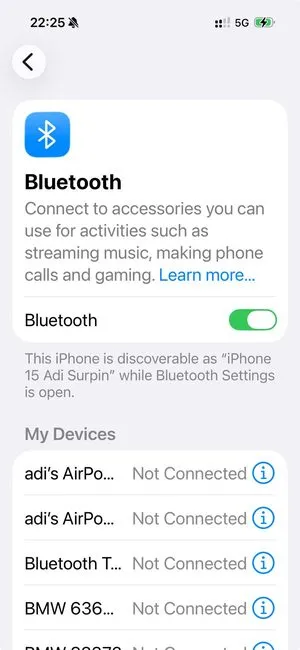
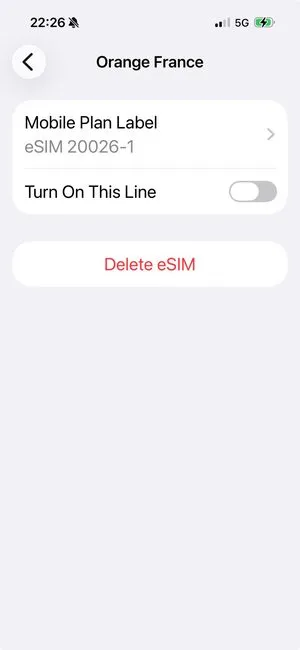
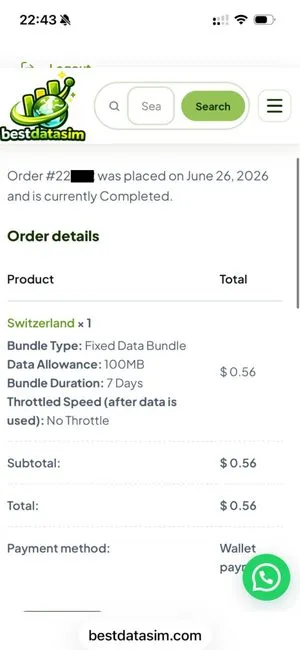
Log in and open your order
Sign in to bestdatasim.com and open the order for your eSIM.
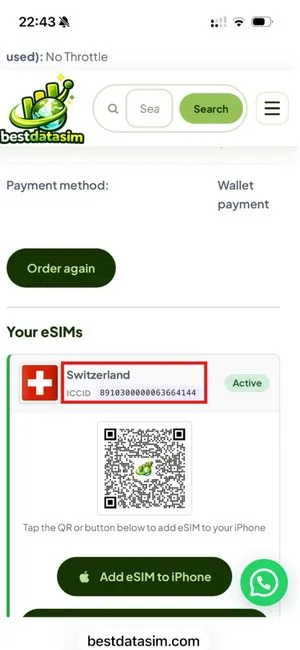
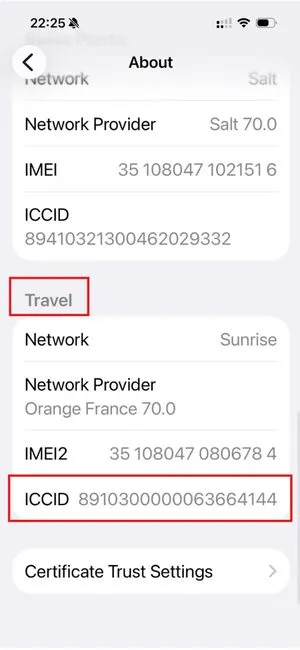
Find your eSIM’s ICCID
Scroll down in the order and find the ICCID of the eSIM. Make a note of it — you’ll compare it on your phone.
Open Settings → Cellular/Mobile Service
On your iPhone open Settings, then Cellular (Mobile Service).
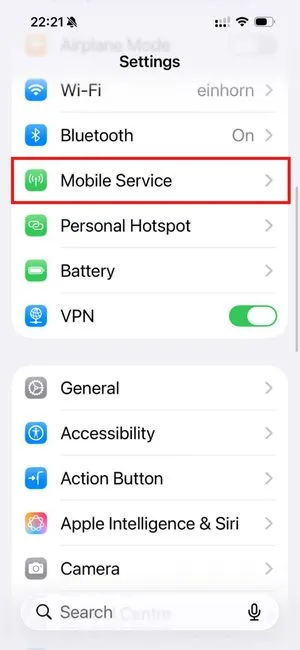
Find your eSIM in the list
Locate your travel eSIM among your SIMs.
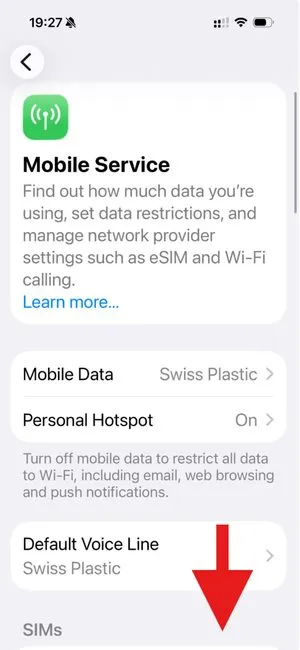
Note the eSIM’s label
Remember the label/name of this eSIM (e.g. “Travel”).
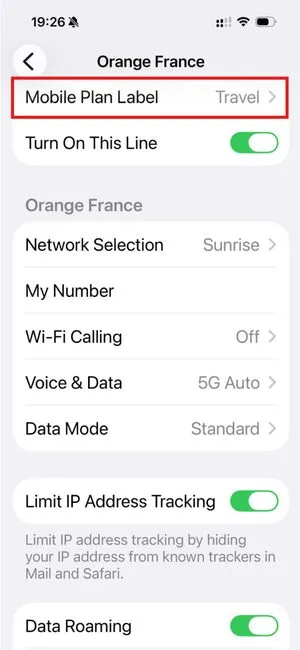
Settings → General
Go back to Settings and tap General.
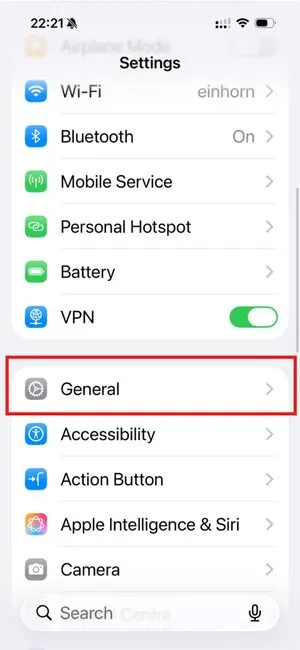
General → About
Open About.
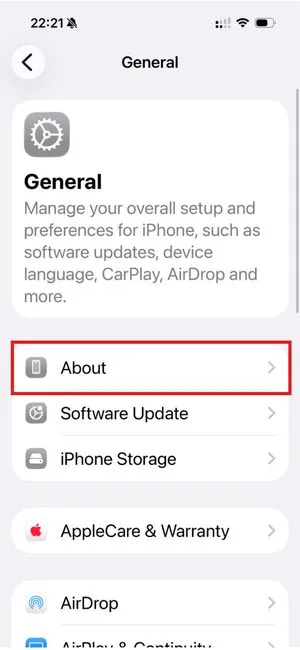
Find the ICCID under your eSIM’s label
In About, scroll to your eSIM’s label — the ICCID is shown there.
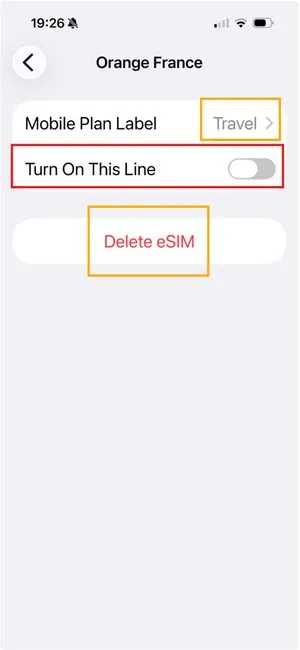
Open Settings → Cellular
Go to Settings → Cellular / Mobile Service.
Select the correct eSIM
Tap the eSIM you confirmed in Step 1.
Turn ON Data Roaming
Make sure Data Roaming is enabled for this eSIM.
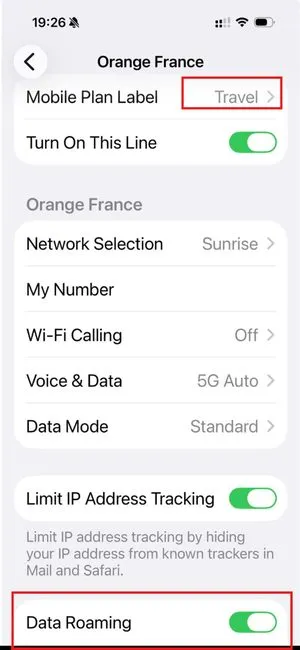
Open Network Selection
Tap Network Selection.
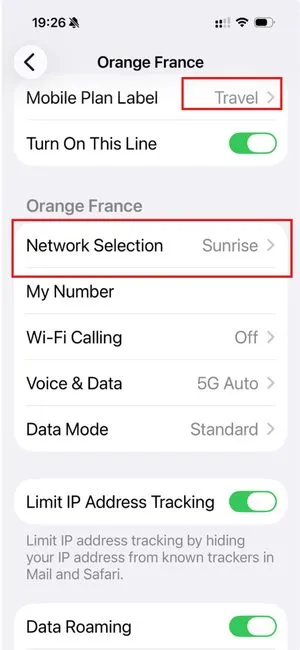
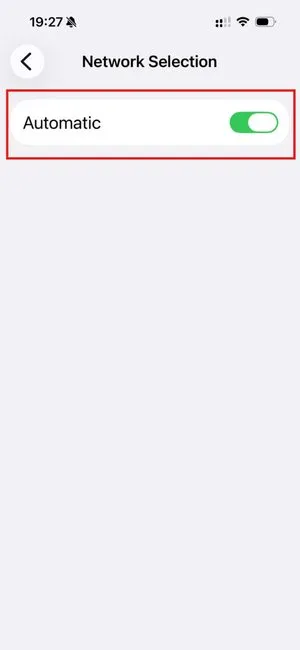
Set it to Automatic
Network Selection must be on Automatic.
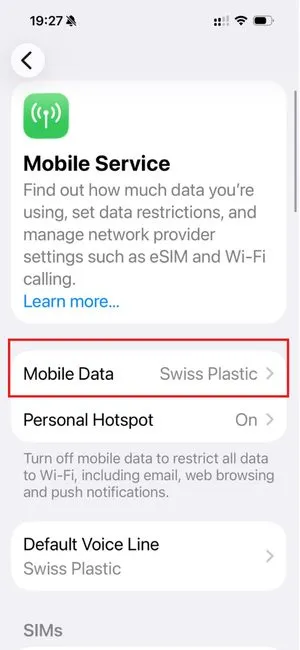
Back to Cellular → Cellular Data
Go back and open Cellular Data / Mobile Data.
Set Cellular Data to your eSIM
Select your travel eSIM as the line used for Cellular Data.
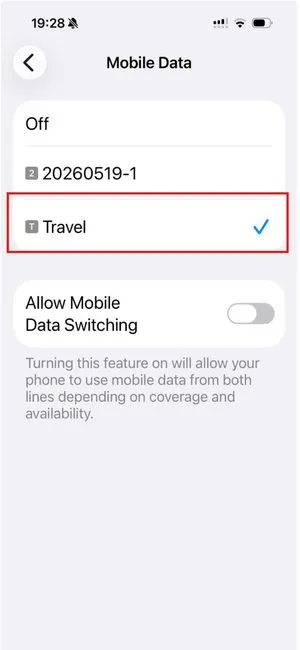
Almost done — verify
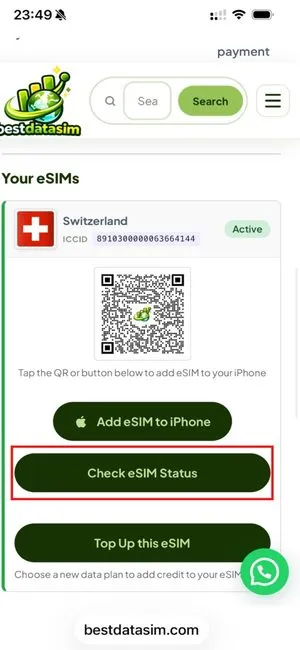
If you followed every step, your eSIM should now work. Log in to the website and check your eSIM Status to confirm data & days remaining.
Still not working?
If your eSIM status shows data & time still remaining but you have no connection, contact us — we’re happy to help.
Chat with us on WhatsApp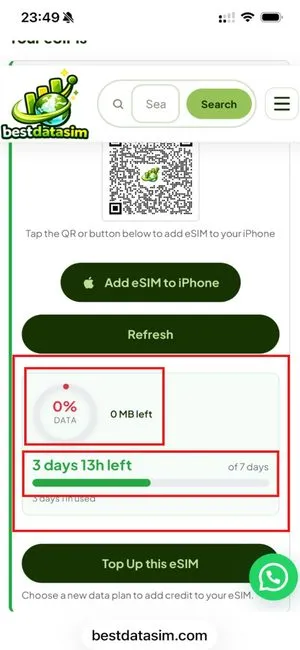
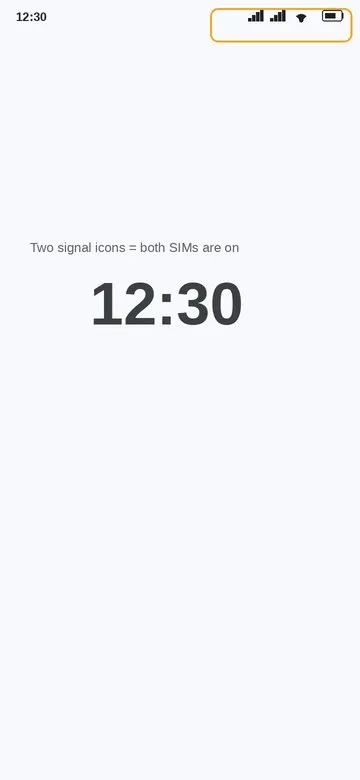
Check the status bar
Look at the top of your screen — do you see two signal indicators? If only one, your travel eSIM may be off. Continue below.
Get your ICCID from the order
Log in to bestdatasim.com, open your order and note the eSIM’s ICCID.
Open your SIM settings
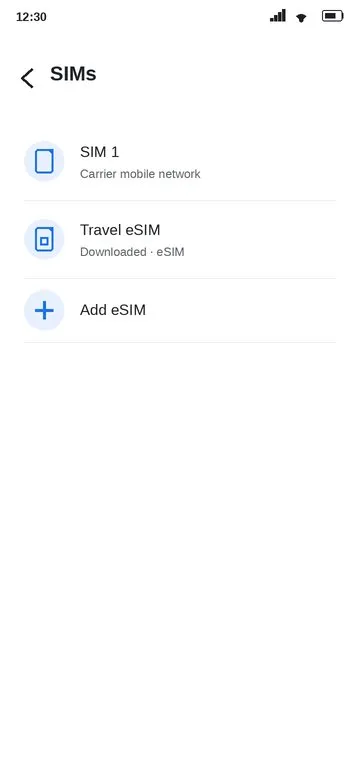
Go to Settings → Network & internet → SIMs (on Samsung: Connections → SIM manager).
Confirm the right eSIM
Select your travel eSIM and check its ICCID matches your order. If it’s a different one, turn that eSIM off (or rename/delete it), enable the correct eSIM, and check again.
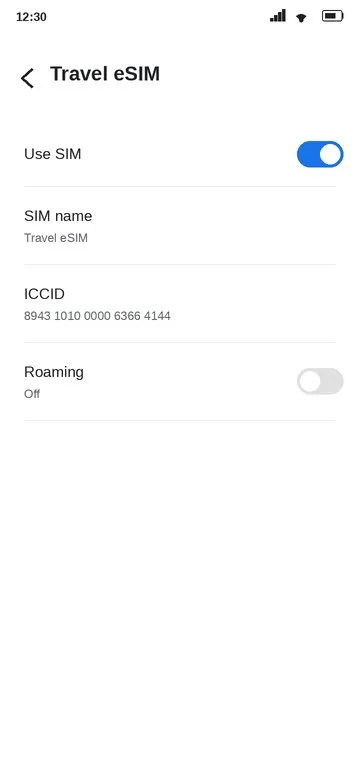
Turn on Roaming for the eSIM
Settings → Network & internet → SIMs → your eSIM, then turn Roaming ON.
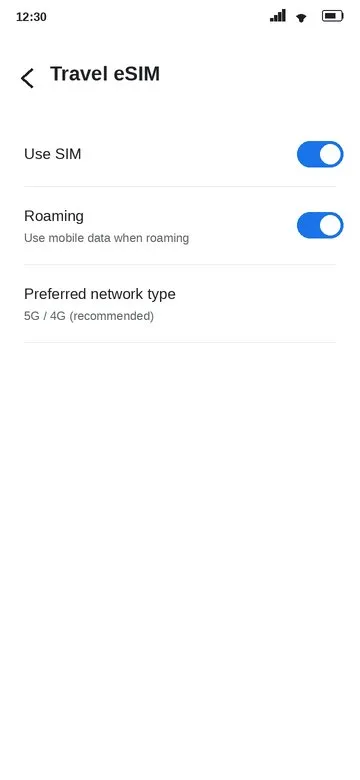
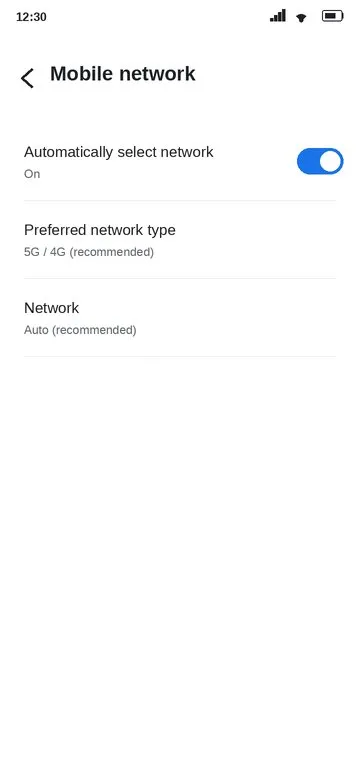
Preferred network = Automatic
Set Preferred network type / network selection to Automatic.
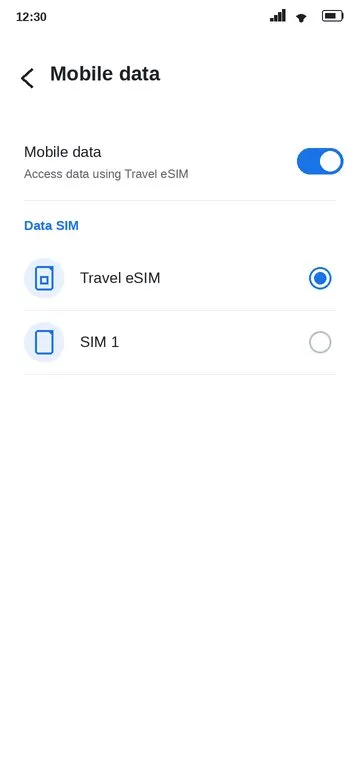
Set Mobile Data to the eSIM
Under SIMs, set Mobile data to your travel eSIM.
Verify
Log in to the website and check your eSIM Status for data & days remaining.
Still not working?
If your status shows data & time remaining but there’s no connection, message us — we’ll help.
Chat with us on WhatsApp